Note: You can change configuration settings for this tool in Run mode. However, these settings usually only persist for the current runtime session. When you close the CygNet Studio screen on which the tool resides, the tool settings may revert to those originally configured in Edit mode. To learn how to override this behavior, see RuntimeCfgAutoPersist.
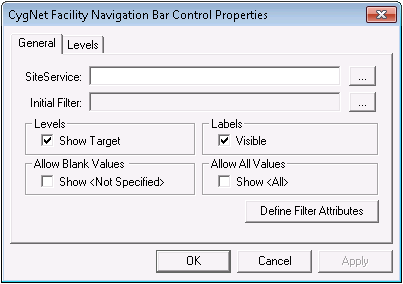
The Initial Filter property pre-filters facilities before returning facility data to the Facility Navigation Bar Tool. The drop-down levels only list facilities if they meet the Initial Filter criteria that you define.
Employing an Initial Filter improves search performance, as it allows searches to focus on a smaller subset of facilities. Irrelevant facilities are removed, so searches "drill down" to relevant ones more quickly. This is especially useful for a large Facility Service (FAC).
Creating Initial Filters is optional. If you specify just a SiteService and do not set up an Initial Filter, the Facility Navigation Bar Tool will return all facilities in the FAC.
This topic includes the following sections:
To learn more about the General page of the CygNet Facility Navigation Bar Control Properties dialog box or to find out more about configuring the Facility Navigation Bar Tool, see Configuring the Facility Navigation Bar Tool.
To Configure an Initial Filter
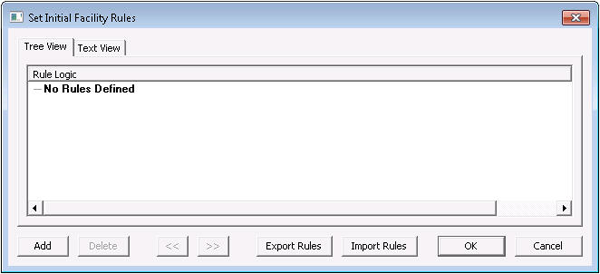
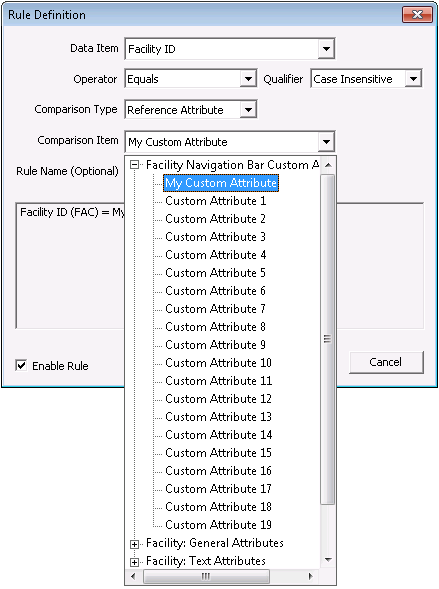
Note: If you select the Reference Attribute option for the Comparison Type field, the Comparison Item field will list Facility Navigation Bar Custom Attributes. This includes the attributes you define using Define Filter Attributes. For details, see To Define Filter Attributes, below.

Note: You can use the following optional procedure to define custom facility attributes to include in a filter. One application of custom filter attributes is to specify one or more facilities that would not otherwise be included in the filter. You can either define filter attributes in Edit mode using the following procedure, or you can configure them dynamically at runtime using a script.
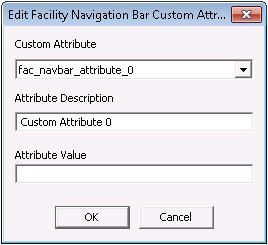
Any custom attributes you define will appear in the Facility Navigation Bar Custom Attributes list under the Comparison Item menu.
|
|
|

